Add an engine or cluster
Most backends need no adding at all: Kontena finds the engines on your machine and the contexts in your default kubeconfig by itself, and re-scans when one starts or stops. Add engine or cluster… in the switcher is for the rest — an engine on another host, or a kubeconfig from somewhere else.
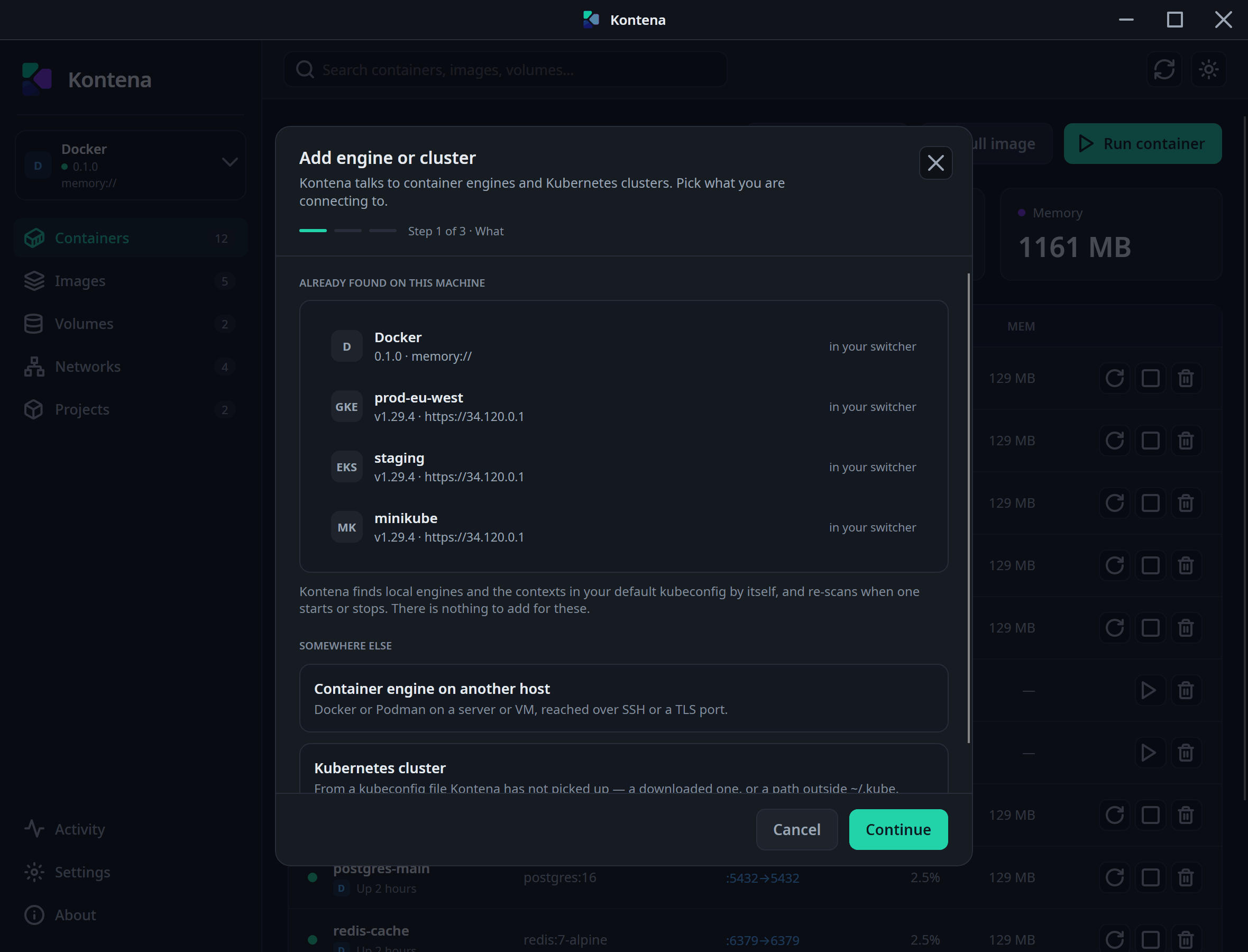
The wizard is three steps — What, Where, Test — and the last one is the connection itself. Nothing is stored until it succeeds: a saved connection that has never worked is worse than none.
An engine on another host#
Docker or Podman on a server or VM appears in the switcher like a local one, with the same pages and the same actions. There are two ways in.
Over SSH#
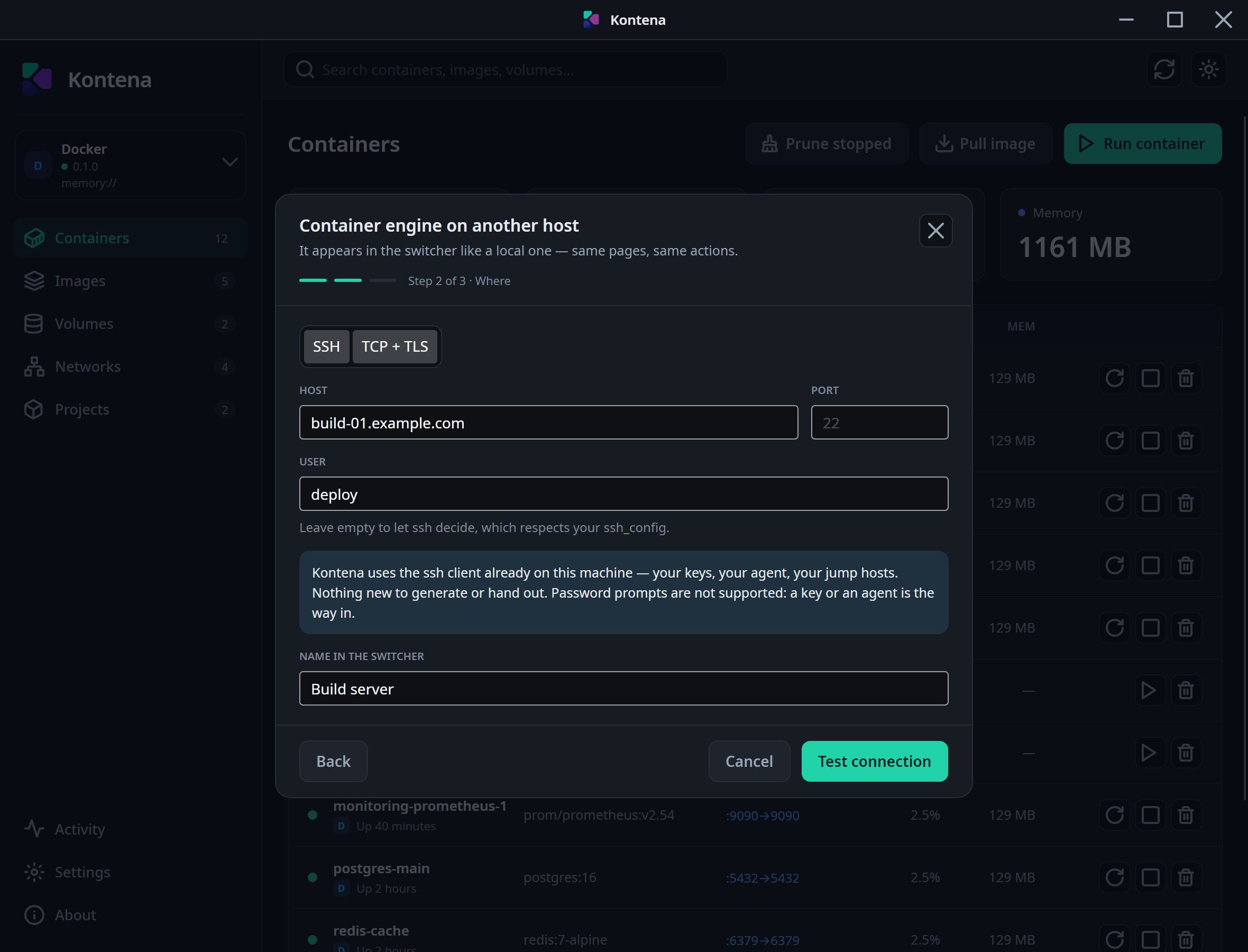
Kontena uses the ssh client already on this machine — your keys, your agent, your
jump hosts. Nothing new to generate or hand out. Leave User empty to let
ssh decide, which respects your ssh_config, including a
Host block with its own user, port or ProxyJump.
Password prompts are not supported. If you can ssh to the host without typing a
password, Kontena can reach its engine; if you cannot, fix that first — this is not a
limitation Kontena can route around.
Over TCP with TLS#
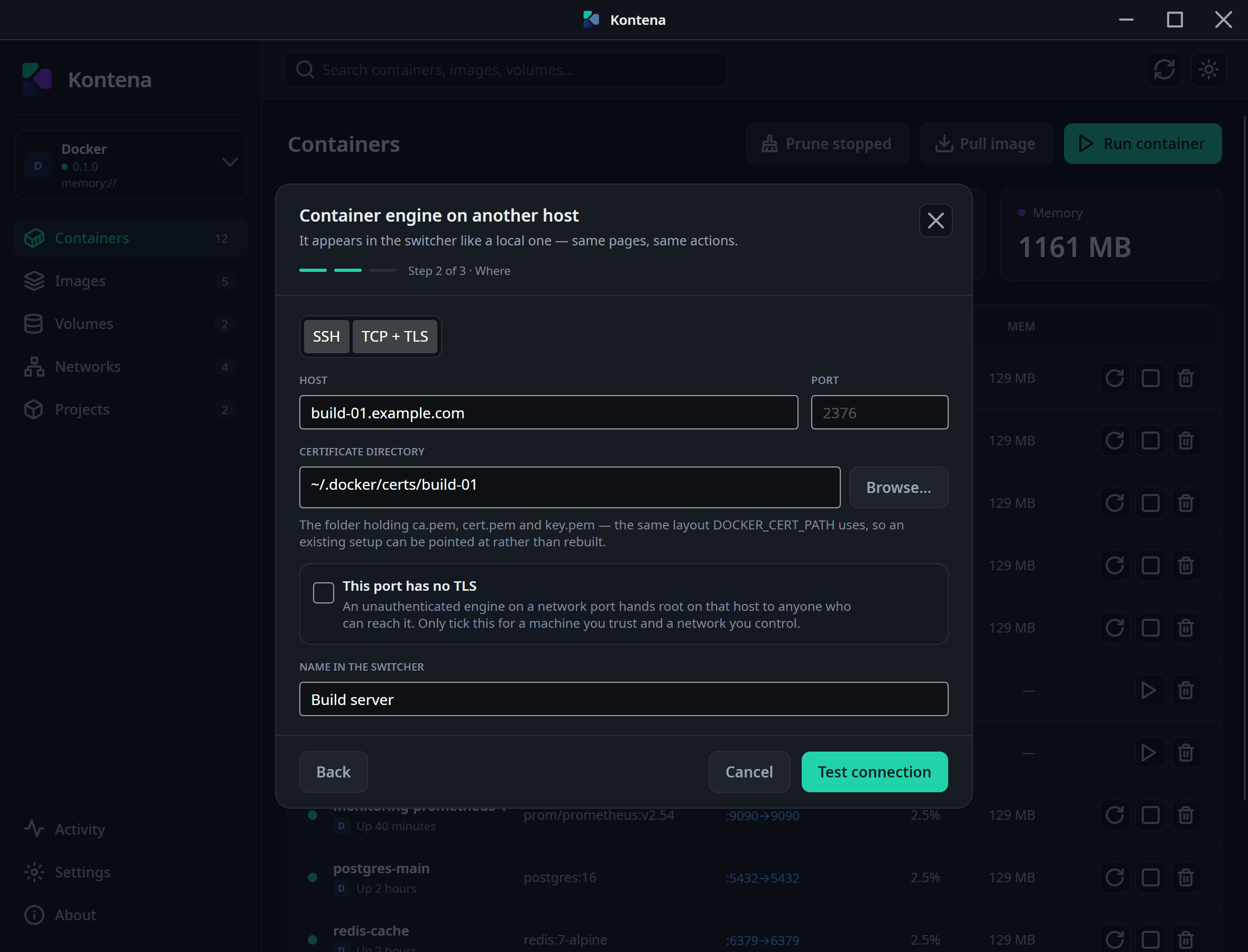
Point Certificate directory at the folder holding ca.pem,
cert.pem and key.pem — the same layout DOCKER_CERT_PATH
uses, so an existing Docker TLS setup can be pointed at rather than rebuilt.
A bare tcp:// endpoint with no certificates is refused unless you tick This
port has no TLS yourself. That is deliberate: an unauthenticated engine on a network
port hands root on that host to anyone who can reach it. Tick it and Kontena connects — and keeps
saying so in the engine list.
A Kubernetes cluster#
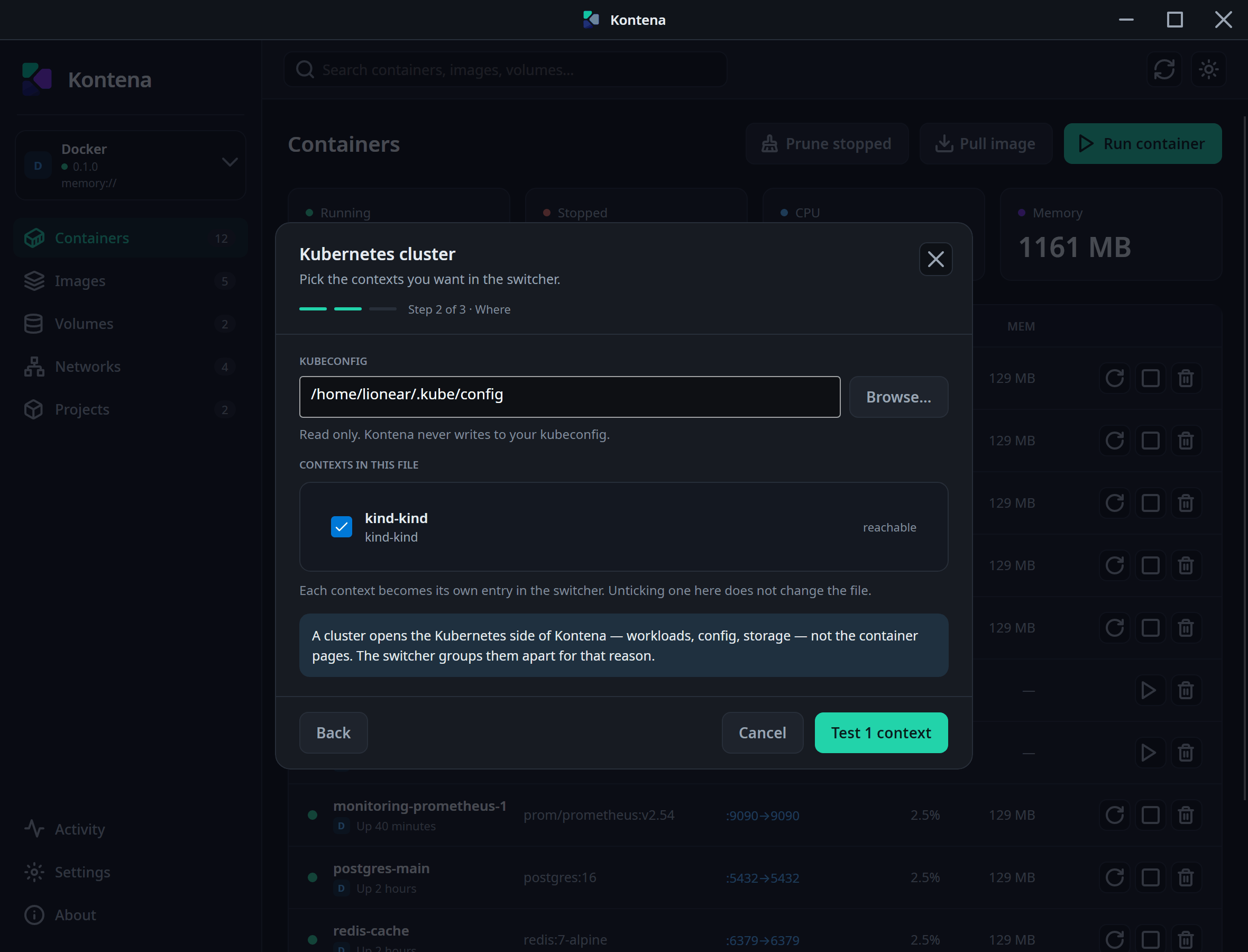
Your default kubeconfig is always read, so this step is for a file outside it — a downloaded
config, or one kept somewhere other than ~/.kube. Point at the file and the contexts
inside it are listed with tickboxes; each ticked context becomes its own entry in the
switcher.
Kontena never writes to your kubeconfig. It is read, and only read: unticking a
context here changes what Kontena shows, not the file. Removing a kubeconfig later, in
Settings › Engines › Kubeconfigs, likewise stops Kontena reading it and leaves the
file alone.
When the test fails#
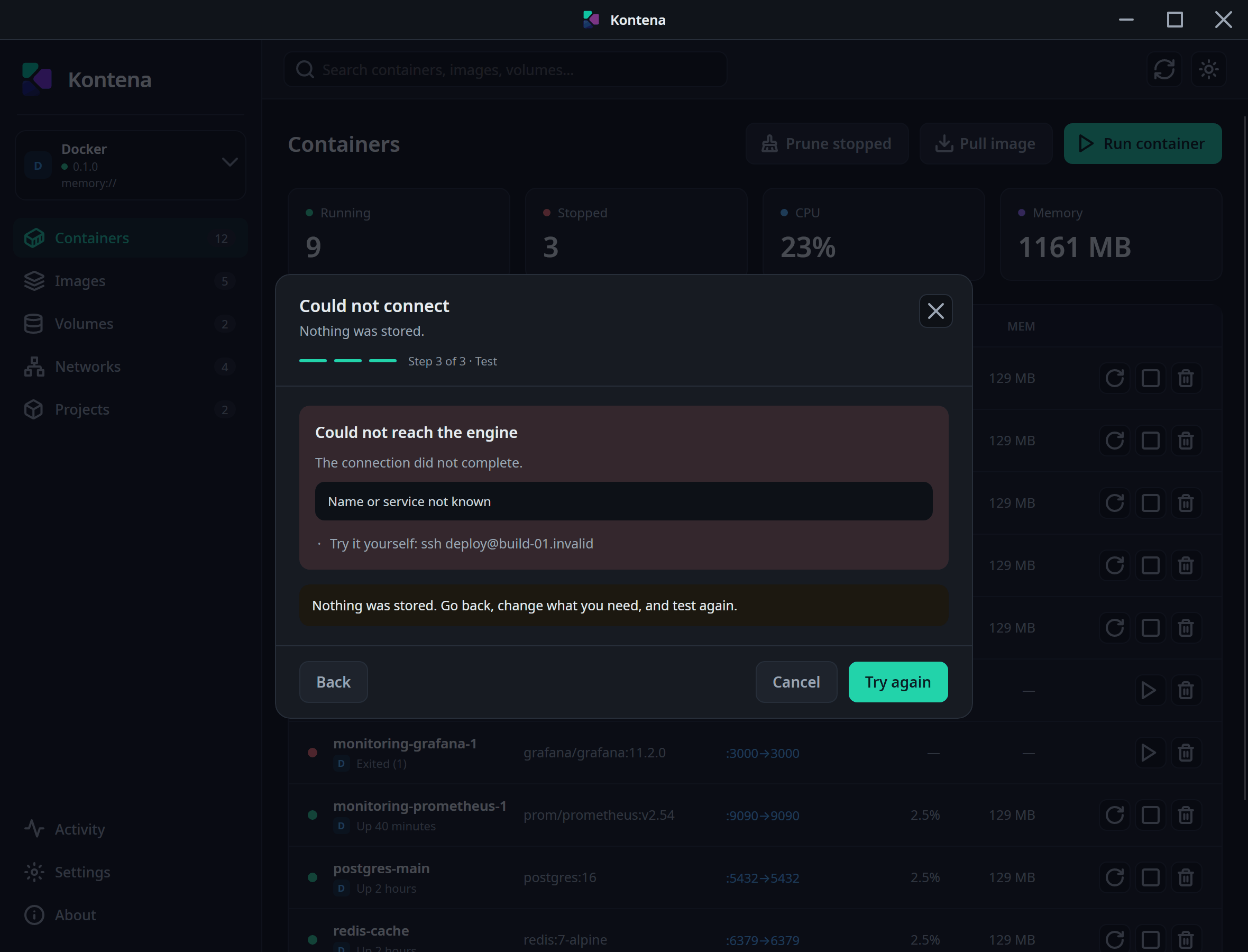
The last step tells you which part failed, in the transport's own words, with hints aimed at that exact failure:
| What you see | What it means | What to do |
|---|---|---|
Permission denied (publickey) |
The host answered, so the address is right — it would not let this key in. | ssh-copy-id user@host, check ssh-add -l, and try
ssh user@host yourself. |
Host key verification failed |
ssh will not connect to a host it has never seen. |
Connect once by hand and accept the key. Kontena does not accept host keys on your behalf — that decision is the point of the check. |
| The TLS exchange failed | The port answered but the certificates did not satisfy it. | Check ca.pem, cert.pem and key.pem are in the
directory you gave, and try the same connection with docker --tlsverify. |
| The port did not answer | Nothing is listening, or it is not an engine. | Check the engine really listens on that endpoint. |
Every failure ends the same way: nothing was stored. Go back, change what you need, and test again.
After it is added#
The wizard adds; Settings › Engines changes and removes. That is where you rename a backend, edit a remote engine — which keeps its identity, so its name, keychain entry, remembered port forwards and launch pin all survive a corrected hostname — and remove what you no longer want.
Paths, hosts and ports live in Kontena's settings file. Secrets never do: a key passphrase or a certificate password goes to your system keychain, and signing out takes it with it.
Engines and clustersWhat the switcher is switching, and why capabilities differ per backend.